
The Future Is Accessible
Creating inclusive, usable content for everyone
Digital accessibility ensures that all students, employees, and community members—including those with disabilities—can access and engage with online content, documents, and tools. This page provides practical guidance, tutorials, and free resources to help you meet ADA Title II requirements and create a more inclusive campus.
Start Here: Universal Design
What is Universal Design?
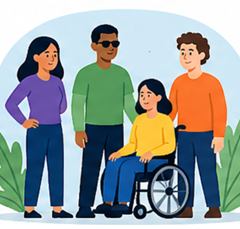
Universal Design is the practice of creating content and environments that are usable by all people, to the greatest extent possible, without the need for adaptation.
In digital spaces, this means designing materials that work for:
- People who are blind or have low vision
- People who are deaf or hard of hearing
- People with mobility, cognitive, or learning disabilities
- People using mobile devices, slow internet, or assistive technology
Why it matters
Accessible design improves usability for everyone—not just those with disabilities. Clear structure, readable text, and meaningful navigation benefit all users.

Accessibility, Diversity, and Inclusion
Accessibility is a core component of equity. As a community college, our mission includes serving all learners.
Inclusive digital content:
- Removes barriers to participation
- Supports student success and retention
- Aligns with legal requirements (ADA Title II)
- Reflects our institutional values
The 7 Core Accessibility Principles
These are the foundations of accessible digital content.
1. Use Proper Heading Levels
- Structure content hierarchically (Heading 1 → Heading 2 → Heading 3)
- Do not skip levels
- Helps screen reader navigation
2. Use Bulleted and Numbered Lists
- Use built-in list tools (not manual dashes or numbers)
- Helps assistive technologies interpret grouped information
3. Write Descriptive Hyperlinks
- Avoid using “Click here” language
- Avoid using entire URLs
4. Use Accessible Colors
- Ensure a strong contrast between text and background
- Do not rely on color alone to convey meaning
- Check contrast with: WebAIM Contrast Checker
5. Add Descriptive Alternative Text (Alt Text) to Images
- Describe the purpose of images, not just appearance
- If images are only decorative, mark them as such rather than providing alt text
6. Format Tables Properly
- Use tables only for data (not layout)
- Include header rows
- Avoid merged/split cells when possible
7. Provide Accurate Closed Captions
- Required for all instructional videos
- Must be synchronized and accurate
- Include meaningful sounds when relevant
Accessibility Best Practices by Format
Even though the above principles are universal, here are some best practices per format.
Web Content (Drupal, HTML, Rich Text Editors)
- Use proper heading structure (H1 → H2 → H3) to organize content logically
- Write descriptive hyperlinks (avoid “click here”)
- Add meaningful alt text to all informative images
- Ensure sufficient color contrast and avoid color-only meaning
- Use lists, not manual formatting, for grouped items
- Ensure all content is keyboard accessible (no mouse required)
- Avoid embedding important text inside images
Documents (Word, Google Docs)
- Use built-in styles for headings, lists, and spacing (no manual formatting)
- Add alt text to images, charts, and graphics
- Use simple, clearly structured tables with header rows
- Avoid floating objects—keep images “in line with text”
- Use descriptive link text
- Run the built-in accessibility checker before sharing
- Set document language and include a meaningful title
PDFs
- Start with an accessible source document (Word, Google Docs, etc.)
- Export using “Save As PDF” with accessibility tagging enabled (not “Print to PDF”)
- Ensure the PDF is properly tagged (headings, lists, tables)
- Verify correct reading order
- Add document title and language
- Check color contrast and alt text
- Use Adobe Acrobat Pro to run accessibility checks and remediate issues
Forms
- Label all form fields clearly and programmatically
- Provide clear instructions and examples where needed
- Include helpful, accessible error messages
- Ensure logical tab order for keyboard navigation
- Group related fields (e.g., radio buttons, checkboxes)
- Avoid time limits unless necessary (or allow extensions)
- Ensure forms are usable with screen readers
Email (Outlook, Gmail)
- Use short paragraphs and clear headings for readability
- Use built-in formatting tools (not manual spacing or line breaks)
- Provide descriptive subject lines and link text
- Avoid image-only emails; include real text
- Add alt text to images
- Ensure sufficient color contrast
- Keep layouts simple (complex tables can be difficult for screen readers)
Canvas LMS
- Use headings to structure pages and modules
- Add alt text to images and media
- Caption all videos and provide transcripts when possible
- Use the built-in accessibility checker and PopeTech before publishing
- Ensure linked documents (PDFs, Word files) are accessible
- Avoid uploading scanned PDFs without OCR
- Keep navigation consistent and predictable
Presentations (PowerPoint, Google Slides)
- Use built-in slide layouts to maintain reading order
- Add alt text to images, charts, and visuals
- Ensure slide titles are unique and descriptive
- Maintain strong color contrast
- Avoid overcrowded slides—limit text per slide
- Use the reading order/selection pane to verify content flow
- Provide captions or transcripts when sharing recordings
Flyers & Social Media
- Avoid placing essential information only in images
- Use high-contrast color combinations
- Keep text concise and readable
- Add alt text when posting images
- Use camel case in hashtags (e.g., #CampusAccessibility)
- Avoid excessive emojis or decorative characters
- Ensure links are descriptive and easy to access
Video & Multimedia
- Provide accurate, synchronized closed captions
- Include transcripts for audio/video content
- Ensure clear audio quality (minimal background noise)
- Avoid flashing or rapidly blinking content
- Describe important visual information in narration (or provide audio description)
- Ensure media players are keyboard accessible
- Provide controls for pause, volume, and playback speed

Screen Readers - A Key Consideration
Screen readers are software tools that convert digital text into speech or braille output.
Common examples:
How they interact with your content:
- Read text from top to bottom (or via keyboard navigation)
- Use headings to jump between sections
- Announce links, lists, and table structure
- Read alternative text for images
Why this matters
If your content isn’t structured correctly, screen reader users may miss or misinterpret key information.

Tools & Free Training Resources
Interested in learning more about digital accessibility? Check out these resources.
Accessibility Training
- WebAIM Main Page
- WebAIM Accessible Documents: Word, PowerPoint, and Acrobat
- CCC Accessibility Center Main Page
- CCC AC Self-Paced Training Catalog
- Creating Accessible Canvas Content
- Deque University
Tools and Resources
- Canvas Faculty Hub (Oxnard College faculty only)
- EAC Faculty Handbook
- WAVE Web Accessibility Evaluation Tool
- CCC AC Catalog of Accessible Content, Platforms, & Tools
- Microsoft Accessibility Checker
- Grackle Docs
- Canva PDF Accessibility Features
- WebAIM guide to using NVDA
- VoiceOver user guide (Mac)
- Google Chrome Accessibility Page
- WCAG Guidelines (W3C)
- Section 508 Standards
- VCCCD Accessibility Site
- Moorpark College Accessibility Site
- Ventura College Accessibility Site
Getting Help
Accessibility is everyone's responsibility. If you need assistance making your content accessible, submit a question or request by using the form below, and the Accessibility Team will get back to you as soon as possible. Please keep in mind that the Accessibility Team's role is to provide guidance and training rather than create content or remediate documents.
Accessibility Team Question/Request Form
Final Thought
Accessibility is not an extra step—it’s part of good design. By building accessibility into your workflow, you create content that is clearer, more usable, and more inclusive for everyone.